
Software training shouldn’t end when the system goes live. Training staff on new dental software works best when it reflects each person’s role, focuses on everyday tasks, and continues as workflows change.
It’s understandable to want your team to feel confident quickly, especially when appointments, patient records, billing, and communication all compete for attention. A single walkthrough can introduce a system, but hands-on repetition helps staff use it in daily work. This guide explains how to identify learning gaps, practice role-specific workflows, and reinforce skills over time. Brief reminders and regular focus areas can help your team adapt to updates without treating training as a one-time event.
Key Takeaways
- Start by identifying what each role needs to do in the system, then tailor practice to those workflows.
- Combine hands-on exercises, role-play, and online learning to help staff build and reinforce practical skills.
- Teach software through real work scenarios and ask team members to demonstrate tasks, not just attend a walkthrough.
- Keep learning active after launch with regular update-focused refreshers and easy-to-access instructions.
1. Dental Software Training: What Does Your Team Really Need?
Start by identifying the tasks each team member handles in the software. Observe how front desk staff schedule appointments, how assistants update records, and how billing staff post payments. Ask where team members hesitate or repeat steps. These observations reveal practical training needs more clearly than a tour of every feature.
Set objectives around those responsibilities. For example, scheduling practice might cover entering an appointment and updating provider availability. Charting practice can focus on finding and recording relevant information, while billing practice can cover posting a payment accurately. Communication objectives might include sending the right patient message and documenting follow-up. These workflows connect software skills to scheduling, billing, and patient care.
For software training that addresses HIPAA-related workflows, teach staff how to handle patient information in the program and follow the practice’s privacy and security procedures. Software instruction supports those procedures; it doesn’t replace other required compliance training.
Training duration depends on staff roles, prior experience, and workflow complexity. A practical plan can start with intensive onboarding, then continue with follow-up sessions over several months. One suggested structure is a 90-day transformation plan: assess needs during days 1 through 30, implement training during days 31 through 60, and refine workflows during days 61 through 90.
Keep sessions short enough to fit the clinic’s schedule. A 15-minute morning huddle can cover one focused task, such as changing provider availability or resolving a scheduling conflict. Use weekly check-ins for new staff members to revisit questions and set the next objective.
Assess readiness by asking each person to demonstrate a task, work through a patient scenario, and explain when they would ask for help. Completing a training session alone doesn’t show that someone can apply the skills. Avoid rushing every role through identical instruction, which can leave gaps in charting, billing, or communication. Address immediate patient safety or compliance concerns first, then use the causes of errors to guide follow-up training.
2. Hands-on practice, role-play, and online learning
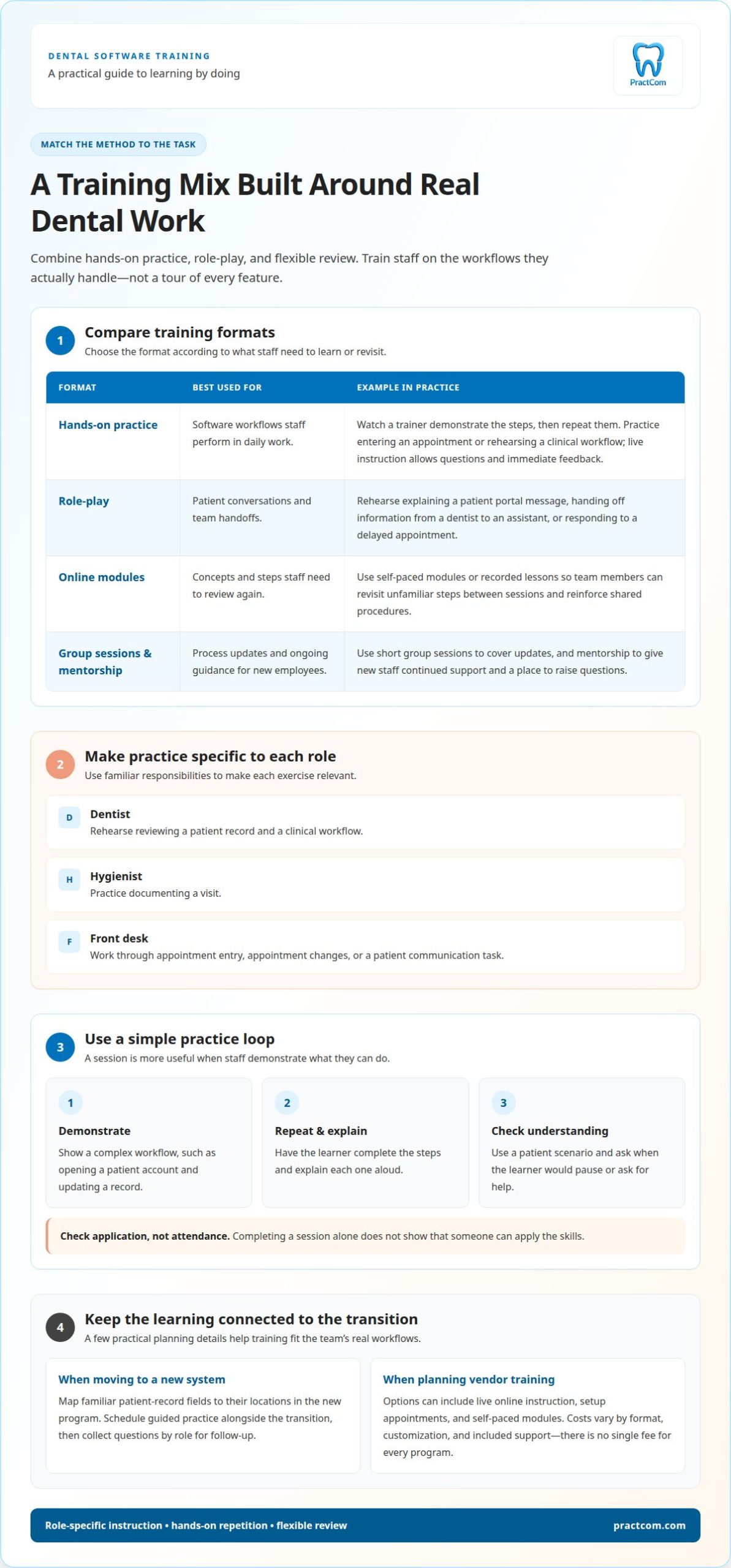
A balanced training plan combines practice, observation, and flexible review. In a setup session, staff can watch a trainer use the system, then repeat the steps themselves. A dentist might rehearse a clinical workflow while front desk staff practice entering an appointment. Live instruction allows questions and immediate feedback; self-paced modules let team members revisit unfamiliar steps between sessions. This mix makes training staff on new dental software practical for different schedules and learning needs.
Match the format to the task. Use hands-on practice for software workflows, role-play for patient conversations and team handoffs, and online modules for concepts staff need to review. For example, a front desk team member can practice explaining a patient portal message, while a dentist rehearses a clear handoff to an assistant. Short group sessions can cover process updates, and mentorship can give new employees ongoing guidance.
Vendor training options can include live online instruction, setup appointments, and self-paced education modules. Costs vary according to format, customization, and included support, so there’s no single fee for every program. Before scheduling, outline the workflows staff need to learn and use that list to shape the sessions. Training staff on new dental software is more focused when instruction follows the team’s real responsibilities.
Train dentists, hygienists, and front desk staff around their distinct responsibilities. A dentist can rehearse reviewing a patient record; a hygienist can practice documenting a visit; and front desk staff can work through appointment changes. Customized live online training can use role-specific scenarios, while recorded modules reinforce shared procedures.
During a software transition, map familiar patient-record fields to their corresponding locations in the new program. Use sample scenarios to teach staff where information appears and how daily steps change. Schedule guided practice alongside the transition, then collect questions from each role for follow-up sessions. For patient communication workflows, a patient portal can give patients a digital place to engage with the practice.
3. Teaching practice management software through daily tasks
Build the training plan around the dental practice’s workload, not a tour of every feature. Identify tasks that slow down a routine day, such as checking in a patient, updating a document, or posting a payment. Then assign practice by role. A new front desk team member can rehearse appointment changes while a clinical assistant practices locating the correct patient record. This makes onboarding relevant to each person’s responsibilities.
Demonstrate complex workflows, then let each team member repeat the steps. For example, show how to open a patient account, update a record, and complete the next appropriate task. Ask the learner to explain each step aloud. Watching them complete the sequence and identify questions helps reveal gaps before the workflow becomes routine.
Include insurance and coding tasks only when they fall within a person’s responsibilities. A billing team member can practice entering insurance information and navigating the relevant fields. Use a sample scenario to rehearse how the office handles missing details or an unfamiliar code. Keep clinical coding decisions aligned with the practice’s established process, and teach staff when to pause and ask the appropriate colleague for guidance.
Scenario-based practice builds practical skills without involving a live patient interaction. Role-play a delayed appointment, a record with incomplete information, or a payment that needs review. One person acts as the patient or colleague; another uses the software and explains the next step. Afterwards, discuss which feature helped and where the handoff could be clearer.
Check practical application, not attendance. Have each staff member complete a representative task independently, then work through another scenario with a different complication. For example, a new team member can show how they would respond when insurance details are missing. Record questions that need follow-up and use them to shape the next practice session. This ties instruction to real office needs and makes skill gaps visible before they disrupt daily work.
4. Provide ongoing training for software updates
Software changes can alter familiar workflows, so make training part of routine operations. Choose a regular focus area, such as locating a patient note or reviewing payment steps. Give employees a short reminder about the focus each day. Repetition helps team members recall the right process when an updated screen appears during a busy clinic day.
For each update refresher, identify what changed and which roles use it. If a payment workflow changes, show billing staff the revised steps and explain where to pause if information doesn’t match. If a patient communication feature changes, demonstrate the new workflow to employees responsible for those messages. Role-specific instruction keeps updates relevant instead of asking everyone to learn every feature.
Keep instructions in an accessible shared location, such as the practice’s internal training folder. Assign a team member to revise them when a workflow changes. Date each update and describe the affected task in plain language. For example, a short guide can show where staff now find a patient note and what to do if it’s missing.
Use brief check-ins to surface confusion early. Ask a team member to demonstrate the updated task, then invite questions about exceptions. Someone who can complete the usual payment workflow may still need guidance when a record has missing details. Add that scenario to the instructions and revisit it in the next focused session.
Connect update training to patient care, not just software navigation. If a changed step affects how staff document a patient interaction, clarify the handoff and what the record should contain. Review recurring questions and workflow errors to decide what needs another demonstration. Don’t assume a change in patient satisfaction or practice performance came from training alone; consider other factors affecting the practice.
To strengthen communication workflows alongside your team’s learning, explore patient communication tools that support consistent follow-ups.
PractCom: The All-in-One Patient Communication Platform for Dental Practices
PractCom is an all-in-one patient communication platform for dental practices, supporting communication workflows alongside your team’s software training. If your practice wants consistent ways to share post-treatment guidance, collect consent, or manage referrals, PractCom’s Post-Treatment Instruction Library, Digital Informed Consent Forms, and Referral Management System address those needs. These tools support patient communication and complement practice management software.
Consider PractCom when your team is refining how it delivers instructions, handles consent forms, or coordinates referrals. A clear, repeatable communication process can help staff apply those workflows consistently as they build confidence with their systems. Contact PractCom to discuss your practice’s communication needs.
Make learning part of your practice’s routine
Training staff on new dental software works best as an ongoing process, not a task to finish before launch. Give your team a clear way to raise questions when a workflow changes, and use those questions to shape future training. This simple habit turns uncertainty into useful feedback and keeps learning connected to the realities of patient care.
Start by identifying one workflow your team wants to handle more consistently and what support would make it easier. If patient communication is part of the challenge, PractCom offers tools for treatment instructions, digital informed consent, and referral management. Explore PractCom to see how these resources can support communication workflows alongside your team’s software training.
Contact PractCom to discuss training and the communication needs your practice wants to address. With a thoughtful next step, your team can keep building confidence as its systems and daily workflows evolve.
Frequently Asked Questions
Why Is Ongoing Training Important?
Ongoing training helps staff adapt when software changes, responsibilities shift, or rarely used tasks come up again. After onboarding, employees may forget an infrequent workflow or rely on steps that have changed. Assign someone to review update information, identify affected roles, and refresh the practice’s instructions. This keeps guidance aligned with current procedures instead of relying on memory.
Dental Software Training: What Does Your Team Really Need?
Focus training on the tasks each role owns and the decisions that affect the next person’s work. For example, front desk staff should understand what information a clinical team member needs after check-in. Billing staff should know which details to flag before processing a claim. Mapping these handoffs can reveal gaps that a feature-by-feature software tour misses.
Spending Time and Money on Training – Is It Worth It?
Evaluate training against the time your team spends correcting workflow mistakes or seeking help with routine tasks. Consider where delays occur, which errors require rework, and how often staff need assistance. Those observations can help prioritize training that addresses operational problems. Weigh the effort against the specific issue being addressed rather than assuming every training activity has equal value.
What Topics Should Dental Staff Learn When Adopting New Software?
Alongside routine tasks, teach staff to recognize exceptions and respond consistently. Cover how to correct an entry, report a system problem, and hand off an incomplete task to the appropriate coworker. Include the practice’s instructions for protecting patient information and handling access credentials. These topics help employees respond when a familiar workflow doesn’t go as expected.
What Are the Best Methods for Hands-on Dental Software Training?
Pair a short demonstration with practice using a fictional patient scenario or a designated training environment, if available. Ask the learner to complete the task without step-by-step prompting, then explain their choices. A coach can observe where the process becomes unclear and offer focused feedback. This tests practical understanding while avoiding unnecessary practice with live patient information.

Article by
Cary Ganz DDS
Dr. Cary H. Ganz is a dentist, prosthodontist, entrepreneur, lecturer, and author with more than 50 years of experience in clinical dentistry and dental technology. Throughout his career, he has combined hands-on patient care with a deep understanding of how technology can improve dental practice operations, communication, documentation, and patient outcomes.
In addition to his clinical background, Dr. Ganz has held significant leadership roles in the dental technology industry, including Past Owner and Vice President of Clinical Affairs at DEXIS Digital Radiography and Past Vice President of Clinical Affairs at Denticon Practice Management Software. His business experience includes product development, clinical strategy, dental software innovation, practice management solutions, and educating dental professionals on the effective use of technology in modern dentistry.
Today, Dr. Ganz continues to focus on creating practical technology solutions for dental practices, including PractCom, a comprehensive dental practice communication platform designed to improve patient communication, documentation, compliance support, referrals, and overall practice efficiency. His work reflects a career-long commitment to helping dentists deliver better care while making their practices more organized, efficient, and protected.
No responses yet